Every premium and members-only resource for $9.99/month, as a no-commitment subscription. See the plans

PalateKit

Menu

Request a resource

Describe the resource you are missing in one sentence. We will email you when it is published.

0 / 280

Unlock PalateKit

Unlock everything

Plan

Paying means accepting our terms of sale.

Secure payment by Stripe. Receipts and invoices sent by email.

Welcome back

Sign in to install, download or save this resource. A free account is enough for free resources.

Auto-zoom that follows the clicks of a screen recording v1.0.0

Use this resource to auto-zoom on the clicks of a screen recording

New

  • 427 downloads
  • 144 likes
  • 149 saves

Free

Install with the CLI

In a terminal, from the folder you want:

npx --yes palatekit@latest install screen-recording-auto-zoom

First time: connect the CLI with

npx --yes palatekit@latest login

The agent adds to your HyperFrames composition a zoom that accompanies three clicks on your screen capture. You provide the image, the zoom level, the position of the three clicks and the ripple color. You get the look of polished software demos.

Mostly picked by

Updated November 2, 2026

Details

Generates with
HyperFrames
Uses
  • HyperFrames (npx hyperframes)
  • Node.js
Licence
Apache-2.0

Similar resources

View all

What you get

  • README.md: usage guide
  • cursor-zoom-follow.html: the author's original file
  • demo.html: the author's original file
  • registry-item.json: the author's original file

Good fit for

  • Highlight the clicks in a software demo
  • Make a dense interface readable
  • Show a chain of actions in a tutorial

Not for

  • A classic video edit without HyperFrames or Node.js
  • An animation that must run as is on a web page

Tags

  • zoom
  • cursor
  • screen recording
  • click
  • product demo

About

You say

"Apply a zoom that follows three clicks on my screenshot, zoom 1.8, blue ripple."
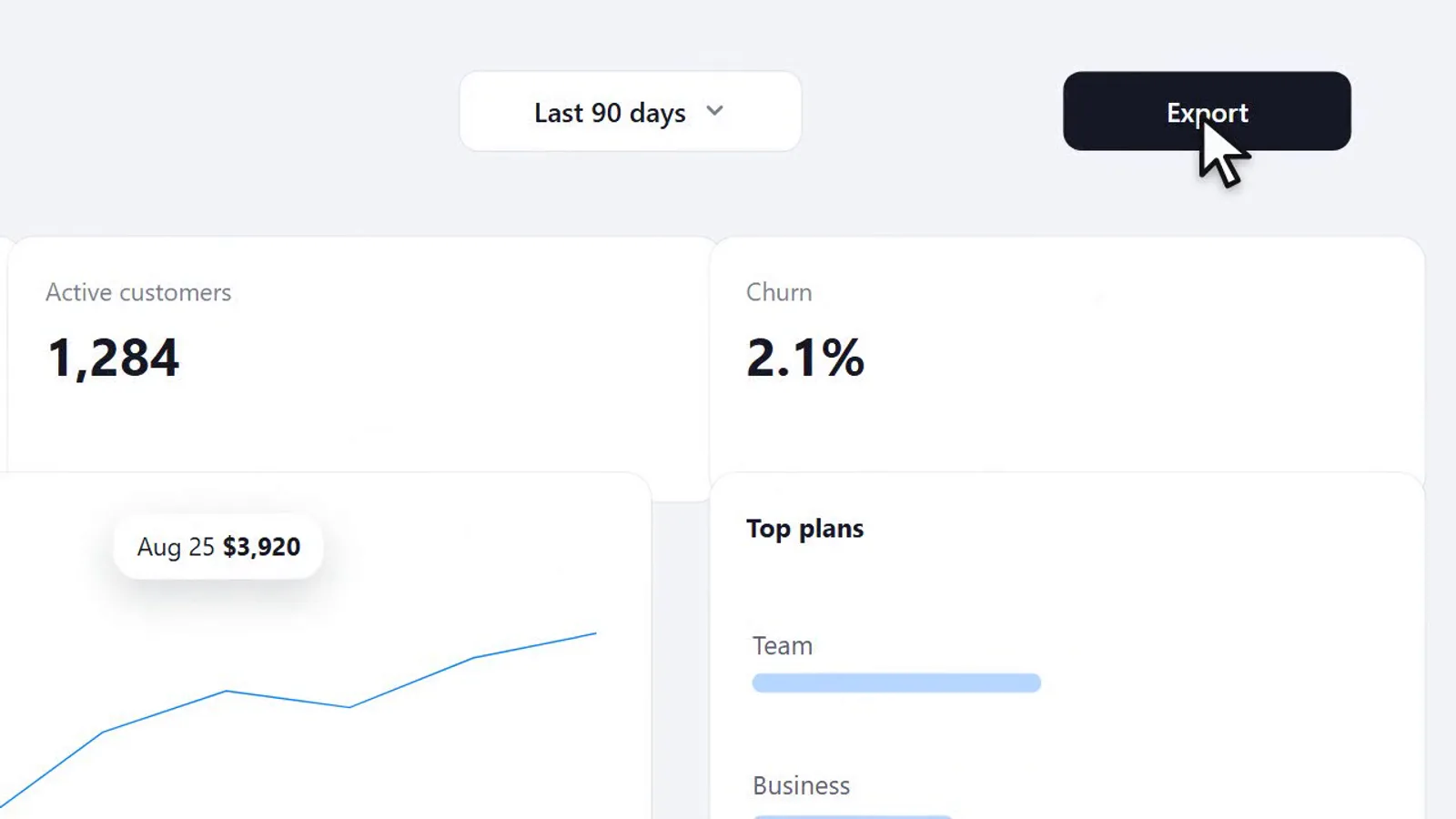
A screen capture zoomed in around the cursor, with a ring marking each click.

Composition published by HeyGen (HyperFrames) under the Apache-2.0 license, resource page and guide written by PalateKit.

Show more

Prerequisites

You bring
Your texts and colors and A HyperFrames project (or the agent creates one)
Dependencies
HyperFrames (npx hyperframes) and Node.js

How to use it

  1. Install it in your HyperFrames project with npx hyperframes add cursor-zoom-follow, or copy the provided files.
  2. Ask the agent to change the texts, colors and duration in the HTML file.
  3. Run the HyperFrames preview, then the render, to get the video.

Content preview

Files

  • cursor-zoom-follow.html27.1 KB
  • demo.html1.9 KB
  • LICENSE10.5 KB
  • NOTICE-PALATEKIT.md0.4 KB
  • README.md0.8 KB
  • registry-item.json2.7 KB

Origin and licence

Modified by PalateKit

Author
HeyGen (HyperFrames)
Source
github.com/heygen-com/hyperframes/tree/2c3d1e07fe63d4a2d67d63a3e29d4ad73e291d8e/registry/components/cursor-zoom-follow
Licence
Apache-2.0

Notice

Version modifiée de « Zoom Follow Cursor » (HeyGen (HyperFrames), Apache-2.0) : traduction française et fiche par PalateKit.

User reviews

–

No ratings yet

Loading reviews…

Delete your review?

Your rating and comment will be removed from the page.

Frequently asked questions

Do I need HyperFrames?

Yes: the composition renders to video with HyperFrames (Node.js). The agent can install it and run the render.

Can I change the texts and colors?

Yes, they live in the HTML file. Give the agent your texts and palette.